


It’s inevitable. Your production systems are going to suffer failures. When it does, your ability to recover and respond to those failures will depend greatly on your ability to discover exactly what went wrong and why. Effective observability provides you with the logging, details, and insights that will guide your efforts from failure to recovery. OpenTelemetry is the emerging standard for providing that observability into today’s complex application architectures.
The OpenTelemetry Framework
OpenTelemetry (OTEL) is an open source framework for cloud native software, providing a rich suite of APIs, libraries, services, and agents to capture detailed traces, metrics, and logging from applications written in nearly any of today’s common software development languages, including .NET, Java, Go, JavaScript, Ruby, PHP, C++, Rust, Python, Erlang, and Kotlin.
For most languages, basic support is as simple as adding the library and a couple of lines of configuration. In .NET there are great many packages to pick from, depending on what functionality you need. But at the least you will need an instrumentation package and an exporter package. The instrumentation package will collect the information from your application and the exporter package will send that information somewhere. For a basic example, we might use the following Nuget packages:
- OpenTelemetry.Extensions.Hosting — provides extensions for starting and stopping tracing and metrics in .NET Core applications
- OpenTelemetry.Instrumentation.AspNetCore — Provides the ability to collect metrics and traces for incoming web requests
- OpenTelemetry.Exporter.Console — Allows data to be written (exported) to the Console
And to activate the functionality in our application, we’ll add the following code in our Program.cs file.
builder.Logging.AddOpenTelemetry(options =>
{
    options
        .SetResourceBuilder(ResourceBuilder.CreateDefault()
                .AddService("app-logger"))
        .AddConsoleExporter();
});
builder.Services.AddOpenTelemetry()
    .ConfigureResource(r => r.AddService("app-logger"))
    .WithTracing(t => t.AddAspNetCoreInstrumentation().AddConsoleExporter())
    .WithMetrics(m => m.AddAspNetCoreInstrumentation().AddConsoleExporter());
That’s everything needed for a basic setup. It we have a simple web app with a single endpoint of /weather/{zipCode?}, then we can run that app, call the endpoint, and we will see logs similar to the following in the Console.
info: Microsoft.Hosting.Lifetime[14]
      Now listening on: http://localhost:8080
LogRecord.Timestamp:               2026-01-28T21:37:30.9835499Z
LogRecord.CategoryName:            Microsoft.Hosting.Lifetime
LogRecord.Severity:                Info
LogRecord.SeverityText:            Information
LogRecord.Body:                    Now listening on: {address}
LogRecord.Attributes (Key:Value):
    address: http://localhost:8080
    OriginalFormat (a.k.a Body): Now listening on: {address}
LogRecord.EventId:                 14
LogRecord.EventName:               ListeningOnAddress

Resource associated with LogRecord:
service.name: app-logger
service.instance.id: fbc6c2fd-85bb-41f2-9b30-94b7b2517f19
telemetry.sdk.name: opentelemetry
telemetry.sdk.language: dotnet
telemetry.sdk.version: 1.15.0

info: Microsoft.Hosting.Lifetime[0]
      Application started. Press Ctrl+C to shut down.
LogRecord.Timestamp:               2026-01-28T21:37:30.9937298Z
LogRecord.CategoryName:            Microsoft.Hosting.Lifetime
LogRecord.Severity:                Info
LogRecord.SeverityText:            Information
LogRecord.Body:                    Application started. Press Ctrl+C to shut down.
LogRecord.Attributes (Key:Value):
    OriginalFormat (a.k.a Body): Application started. Press Ctrl+C to shut down.

Resource associated with LogRecord:
service.name: app-logger
service.instance.id: fbc6c2fd-85bb-41f2-9b30-94b7b2517f19
telemetry.sdk.name: opentelemetry
telemetry.sdk.language: dotnet
telemetry.sdk.version: 1.15.0

info: Microsoft.Hosting.Lifetime[0]
      Hosting environment: Development
LogRecord.Timestamp:               2026-01-28T21:37:30.9947637Z
LogRecord.CategoryName:            Microsoft.Hosting.Lifetime
LogRecord.Severity:                Info
LogRecord.SeverityText:            Information
LogRecord.Body:                    Hosting environment: {EnvName}
LogRecord.Attributes (Key:Value):
    EnvName: Development
    OriginalFormat (a.k.a Body): Hosting environment: {EnvName}

Resource associated with LogRecord:
service.name: app-logger
service.instance.id: fbc6c2fd-85bb-41f2-9b30-94b7b2517f19
telemetry.sdk.name: opentelemetry
telemetry.sdk.language: dotnet
telemetry.sdk.version: 1.15.0

info: Microsoft.Hosting.Lifetime[0]
      Content root path: C:\projects\OtelWebDemo1\OtelWebDemo1
LogRecord.Timestamp:               2026-01-28T21:37:30.9953885Z
LogRecord.CategoryName:            Microsoft.Hosting.Lifetime
LogRecord.Severity:                Info
LogRecord.SeverityText:            Information
LogRecord.Body:                    Content root path: {ContentRoot}
LogRecord.Attributes (Key:Value):
    ContentRoot: C:\projects\OtelWebDemo1\OtelWebDemo1
    OriginalFormat (a.k.a Body): Content root path: {ContentRoot}

Resource associated with LogRecord:
service.name: app-logger
service.instance.id: fbc6c2fd-85bb-41f2-9b30-94b7b2517f19
telemetry.sdk.name: opentelemetry
telemetry.sdk.language: dotnet
telemetry.sdk.version: 1.15.0

info: Program[0]
      The weather was requested for zip code `44444`. It will be: foggy and cold
LogRecord.Timestamp:               2026-01-28T21:37:33.8952796Z
LogRecord.TraceId:                 26bf82c527782694ba1f322d95b0f1a1
LogRecord.SpanId:                  c0da8620e31ae063
LogRecord.TraceFlags:              Recorded
LogRecord.CategoryName:            Program
LogRecord.Severity:                Info
LogRecord.SeverityText:            Information
LogRecord.Body:                    The weather was requested for zip code {zipCode}. It will be: {result}
LogRecord.Attributes (Key:Value):
    zipCode: 44444
    result: foggy and cold
    OriginalFormat (a.k.a Body): The weather was requested for zip code {zipCode}. It will be: {result}

Resource associated with LogRecord:
service.name: app-logger
service.instance.id: fbc6c2fd-85bb-41f2-9b30-94b7b2517f19
telemetry.sdk.name: opentelemetry
telemetry.sdk.language: dotnet
telemetry.sdk.version: 1.15.0

Activity.TraceId:            26bf82c527782694ba1f322d95b0f1a1
Activity.SpanId:             c0da8620e31ae063
Activity.TraceFlags:         Recorded
Activity.DisplayName:        GET /weather/{zipCode?}
Activity.Kind:               Server
Activity.StartTime:          2026-01-28T21:37:33.8634200Z
Activity.Duration:           00:00:00.0381264
Activity.Tags:
    server.address: localhost
    server.port: 8080
    http.request.method: GET
    url.scheme: http
    url.path: /weather/44444
    network.protocol.version: 1.1
    user_agent.original: curl/8.16.0
    http.route: /weather/{zipCode?}
    http.response.status_code: 200
Instrumentation scope (ActivitySource):
    Name: Microsoft.AspNetCore
Resource associated with Activity:
    service.name: app-logger
    service.instance.id: fbc6c2fd-85bb-41f2-9b30-94b7b2517f19
    telemetry.sdk.name: opentelemetry
    telemetry.sdk.language: dotnet
    telemetry.sdk.version: 1.15.0

Resource associated with Metrics:
        service.name: app-logger
        service.instance.id: fbc6c2fd-85bb-41f2-9b30-94b7b2517f19
        telemetry.sdk.name: opentelemetry
        telemetry.sdk.language: dotnet
        telemetry.sdk.version: 1.15.0
That’s only a small snippet. The actual logs are much longer and contain a great deal more information about the server, the endpoints that get called, and all the things that happen along the way. The test was only run for about 10 seconds and the endpoint was only called twice, and yet it generated a great deal of logging information. We’ll delve further into better ways of reading the output later, but this gives you and idea of what information you can collect with OTEL.
There are four general types of information that OTEL can collect from running applications: Traces, Metrics, Logs, and Baggage. Let’s look at each of those pieces of information and how they are typically used.
Traces
Traces are a track of the path that a request makes through the application. Typically this refers to an HTTP call such as a GET or POST to an endpoint, but it can be anything that triggers a flow in your application. A trace keeps track of the full movement of a workflow as it progresses. For example, an HTTP POST call arrives to add a record to our customer table. It starts with the POST endpoint in our API. From there, it might make calls to various blocks of business logic to validate the incoming record or to kick off related processes. Next, it makes the call to the data layer, which in turn connects to our database to insert the record. The data layer then sends a success/fail response back to the calling business layer code, which in turn responds to the endpoint code, and that finally sends the HTTP response back to the calling application.
In OTEL, a trace collects all the various steps into a single related block of information that you can then use to analyze what happened during the process. Each of the segments of work are referred to as a span. In our example above, the parent span is the POST endpoint block of work. A span may or may not have child spans. In our example, the POST span has one or more business logic child spans. Depending on how you write your code, the data layer span may be a child of a business logic span, or it might be a child of the POST parent span. The actual database interaction would be a child span of the data layer span, and so forth.
If you use an external tool such as Datadog, or a local development tool such as Aspire, traces are often represented in waterfall charts like the following:
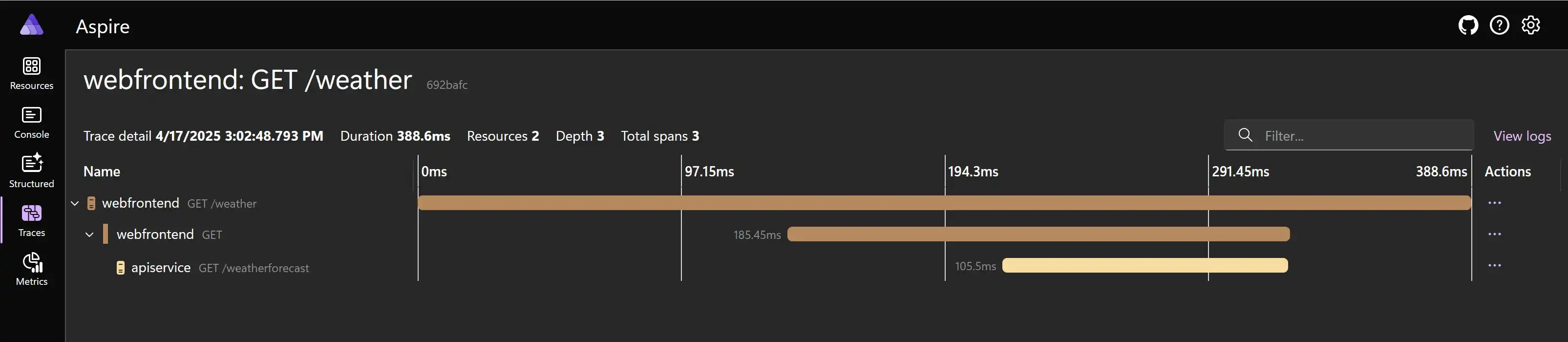
In the picture you can see the weather call is made of of 3 spans. There’s the webfrontend span, which is the user navigating to the web page. It gets the weather data from the api, it renders the page, and returns it to the browser. This is the parent span. Under the parent span, we have a child webfrontend span, which consists of the external call from the webfrontend to the apiservice and its GET endpoint of /weatherforecast. And below that we have the span that covers the apiservice section, where it generates the data and returns it to the webfrontend. So, using graphical representations of the data like this, we can easily trace the path that the logic takes through our code.
You can also see in the picture one other critical aspect that traces provide: timing. We see that the apiservice took 105.5ms. The call from webfrontend to apiservice took 185.45ms. And the entire flow from calling the web page to render in the user’s browser took 388.6ms. Next to using telemetry to figure out where things went wrong and why, this is perhaps the most important piece of information that OTEL can provide. We can use it to quickly and easily see how long something is taking so that we can focus on real performance improvements.
I recently spent a couple of weeks pouring through graphs like this on a client project and found several places where our code performance could be improved. The end result of rewriting those code pain points reduced the runtime of multiple workflows by 10%-40%. Across thousands of calls per day, that perf improvement can really add up.
For C#, adding traces at their basic level doesn’t require you doing anything other than adding the code to your Program.cs file as shown above. But if the basic telemetry is too broad and you want to narrow down the scope a bit with custom spans, it’s quite easy to do so. First, we need to adjust our Program.cs file a bit to properly set up our custom tracing service.
var serviceName = "OtelDemo.TracingService";
var serviceVersion = "1.0.0";

var builder = WebApplication.CreateBuilder(args);
builder.Logging.AddOpenTelemetry(options =>
{
    options.SetResourceBuilder(ResourceBuilder.CreateDefault()
        .AddService(serviceName))
    .AddConsoleExporter();
});
builder.Services.AddOpenTelemetry()
    .ConfigureResource(r => r.AddService(serviceName))
    .WithTracing(t =>
    {
        t.AddSource(serviceName)
            .SetResourceBuilder(ResourceBuilder.CreateDefault()
                .AddService(serviceName, serviceVersion))
            .AddAspNetCoreInstrumentation()
            .AddConsoleExporter();
    })
    .WithMetrics(m => m.AddAspNetCoreInstrumentation()
            .AddConsoleExporter());

builder.Services.AddSingleton(TracerProvider.Default.GetTracer(serviceName));

var app = builder.Build();
This ensures that our custom tracer is set up as a singleton service that we can then inject into our endpoint classes. In the code for your endpoint, you can add something like the following:
app.MapGet("/weather/{zipCode?}", (Tracer tracer, ILogger<Program> logger, string? zipCode) =>
{
    string result;

    using (var span = tracer.StartActiveSpan("Doing some weather stuff"))
    {
        span.SetAttribute("operation.zipcode", zipCode);
        span.AddEvent("Getting the weather details");
        result = Forecast(zipCode);
    }

    if (string.IsNullOrEmpty(zipCode))
    {
        logger.LogInformation("The weather was requested for the whole planet. It will be: {result}", result);
        return $"The weather for the whole planet will be: {result}";
    }
    else
    {
        logger.LogInformation("The weather was requested for zip code {zipCode}. It will be: {result}", zipCode, result);
        return $"The weather for zip code {zipCode} will be {result}";
    }
});
The tracer lets us create a custom span, which we can then use to record various bits of data and events in our “Doing some weather stuff” span. In our Console logs, we’ll then see output like the following:
Activity.TraceId:            463bdb36e750116d3f46d3fcb706da40
Activity.SpanId:             b5a42602dd379702
Activity.TraceFlags:         Recorded
Activity.ParentSpanId:       3dbb6bc36683a4b8
Activity.DisplayName:        Doing some weather stuff
Activity.Kind:               Internal
Activity.StartTime:          2026-01-30T15:01:41.8213377Z
Activity.Duration:           00:00:00.0002123
Activity.Tags:
    operation.zipcode: 44447
Activity.Events:
    Getting the weather details [1/30/2026 3:01:41 PM +00:00]
Instrumentation scope (ActivitySource):
    Name: OtelDemo.TracingService
Resource associated with Activity:
    service.name: OtelDemo.TracingService
    service.namespace: 1.0.0
    service.instance.id: fa53c476-4674-4dd5-8350-2e01c758b5d7
    telemetry.sdk.name: opentelemetry
    telemetry.sdk.language: dotnet
    telemetry.sdk.version: 1.15.0
Metrics
Just as its name implies, metrics measure something. A metric captures a measurement, the time it was captured, and any associated metadata. Metrics are often used to measure how often something is going wrong. For example, lets say you have a piece of code which calls an external service to get some data related to a customer. Let’s further suppose that the external service is not the most reliable of software applications and it’s not uncommon for 1 call in 100 to return no data, or an error message of some kind. Using a resilience tool like Polly, you write your code to handle these failures with retries. And that works great, except that once or twice a month, that service stops responding entirely and every call fails. You need that data for your own processes, or your application doesn’t do what it’s supposed to do. You could set up some kind of alert for when a call fails, but then you could get hundreds of false positives per day. We all know what happens then: Support adds an email rule that any of those alerts go straight to a subfolder, or trash, and get ignored.
Here’s where metrics come in to play. Instead of an alert every time a call fails, you trigger a metric. That metric records the details of the failure, and your application goes on without too much concern. But in our monitoring service, we can set up an alert that will trigger if we get to some threshold of critical failure: perhaps it might be more than 20 failures in the last 60 seconds. By using metrics in this way, we can be alerted when something is really going wrong, but we can ignore it otherwise. Of course, in a situation like this, having such metrics is also a great way to prove the reliability, or lack thereof, of such external services and back up an argument that the team really needs to invest in a different service or approach.
Another great use of metrics is to track how often a particular block of code might be used. Traces can help with that, but you have to filter through a lot of trace data to parse that out. Instead, you can just add a metric to trigger whenever that code gets hit, and you can quickly get data on how often it, and how much, it gets used. This can help you determine whether investing in a refactor of a particular block of code is worth your time. Perhaps you have a 1000 line class and refactoring it would take a developer a month to rewrite and thoroughly test. If metrics show you that only 30% of that class is used, but it only gets hit once or twice a day, it would probably be a low priority task. If, instead, you can see that 30% is used, but that 30% gets hit hundreds or thousands of times per minute, then there is real value in investing in that rewrite sooner.
We know that in a lot of environments, once a block of code is written, it never gets touched again, no matter how inefficiently it was written the first time. Management just doesn’t see the value in it. Metrics can give you hard evidence that a critical piece of code really needs some attention sooner, rather than later.
Adding custom metrics to your code is simple. Let’s say we want to create a metric to count the number of times that an endpoint is called. Let’s add the following updates to the .WithMetrics() segment of our Program.cs file.
    .WithMetrics(m => m
            .AddRuntimeInstrumentation()
            .AddAspNetCoreInstrumentation()
            .AddConsoleExporter()
            .AddMeter("Weather.Counter")
    )
We’re creating a meter named “Weather.Counter” to hold information about the number of calls to the endpoint. Then, we’ll add a variable to represent our meter with a couple of lines of code just about the endpoint definition.
var myMeter = new Meter("Weather.Counter", serviceVersion);
var requestCounter = myMeter.CreateCounter<long>("calls_to_weather_endpoint",
    description: "The number of calls to the weather endpoint");
Here, we define the meter instance, giving it a reference to the meter we declared above, then add a counter to that meter. A meter can have any number of metrics like counters associated with it. Lastly, at the top of our MapGet block for our weather endpoint, we’ll add the following line:
requestCounter.Add(1, new KeyValuePair<string, object?>("endpoint_path", $"/weather/{zipCode}"));This tells our meter to add a count to the KeyValue pair of “endpoint_path” and the particular zipcode that was called. Hey, some destinations are more popular than others. We want to know where everyone is planning to go!
This gives us output similar to the following:
Metric Name: calls_to_weather_endpoint, Description: The number of calls to the weather endpoint, Metric Type: LongSum
Instrumentation scope (Meter):
        Name: Weather.Counter
        Version: 1.0.0
(2026-01-30T15:33:48.5945612Z, 2026-01-30T15:33:57.5193728Z] endpoint_path: /weather/44447
Value: 3
(2026-01-30T15:33:48.5945612Z, 2026-01-30T15:33:57.5193728Z] endpoint_path: /weather/44448
Value: 1
We have 3 calls for zip code 44447 and 1 call for zip code 44448.
There’s so much more you can do with metrics, but this gives you an excellent starting point.
Logs
A log is a timestamped text record that tells you something. It may have a particular structure, or it may be more freeform. Logs are the base unit of everything else. Logging is at the core of everything, and pretty much every code language out there has had logging as a part of it from the very beginning. Logs are just row after row of raw information. While traces and metrics are backed by log records, logs can provide much, much more. As the official documents put it: “Not all logs are events, but all events are logs”.
Traces and metrics are useful for what they’re designed to accomplish, but when you’re trying to figure out what’s wrong, the logs are what you need. Unlike traces and metrics, you don’t need to do anything special to ship log records to your monitoring service. As I mentioned, logging is built in to practically every language, and OTEL will automatically ship out any log record you create. That’s the job of the exporter library I mentioned at the beginning.
As generated by your particular code language and whatever logging framework you might use with it, logs may be structured, unstructured, or semi-structured. But when OTEL converts that into a log record and ships it with the exporter, it creates a structured output record with specifically defined fields. Let’s re-visit a snippet from our console output above.
LogRecord.Timestamp:               2026-01-28T21:37:33.8952796Z
LogRecord.TraceId:                 26bf82c527782694ba1f322d95b0f1a1
LogRecord.SpanId:                  c0da8620e31ae063
LogRecord.TraceFlags:              Recorded
LogRecord.CategoryName:            Program
LogRecord.Severity:                Info
LogRecord.SeverityText:            Information
LogRecord.Body:                    The weather was requested for zip code {zipCode}. It will be: {result}
LogRecord.Attributes (Key:Value):
    zipCode: 44444
    result: foggy and cold
    OriginalFormat (a.k.a Body): The weather was requested for zip code {zipCode}. It will be: {result}
Here you can see several details. The exact fields might vary as OTEL doesn’t always include every defined field. It depends on the specific language and its current implementation. But in our example, we can see several valuable details.
| Field | Use | |
|---|---|---|
| Timestamp | When the event occurred | |
| TraceId | If the log record correlates to a trace, the ID is shown | |
| SpanId | The ID of the span within that trace | |
| TraceFlags | Any flags for the trace. The W3C sets a standard for these. | |
| CategoryName | A value provided by .NET ILogger indicating the category associated with the record | |
| Severity | The log severity level | |
| SeverityText | A more verbose description of severity | |
| Body | The full text of the log message | |
| Attributes | Additional data and details provided to the log record |
Let’s look at the line of C# code that generates this log record.
logger.LogInformation("The weather was requested for zip code {zipCode}. It will be: {result}", zipCode, result);You can see that you get a lot of information for a short log statement. The attributes are especially important, and including the right data is often critical to resolving issues. Time and again, failures in code are data specific. If you don’t have that data, it can be difficult to resolve errors.
Baggage
OpenTelemetry provides for another concept known as baggage. Essentially, baggage is data that can be shared across all the spans, services, metrics and so forth that are related to a flow. The difference between baggage and span-specific attributes like tags is that baggage is passed between contexts. What that means is that if you add baggage to a parent span, it is accessible from all the child traces and metrics.
Baggage is also passed into other contexts. For example, if your code makes an HTTP request, the baggage is added to the headers of that request so the receiving process can see it. As such, using baggage has security risks and should be carefully considered in how it is implemented. Sensitive data such as PII, for example, should never be added to baggage as other processes can read those headers. Typically, baggage is used to make logging related data available that would usually only be available at the start of a request. It should typically be used for data which isn’t specifically needed for code execution, but which you might want to include in logs, such as user ID, source IP address, and so forth.
Stuffing data into baggage is simple:
using OpenTelemetry.Baggage;

...

Baggage.SetBaggage("TenantId", "Tenant1234");
Baggage.SetBaggage("SubsetTestGroup", "GroupA");
Getting data out of baggage is the same way:
var tenant = Baggage.GetBaggage("TenantId");Reading All That Data - Conclusion
All that data can be extremely useful. As you can see from the examples, just dumping it into the Console makes it difficult to read and parse, and should really only be a starting point. If you’re using a framework like Aspire, OpenTelemetry is built in by default, and the Aspire dashboard is a great starting point for being able to read and parse that data in a useful manner. When you get to production, however, you’re going to need something a bit more substantial. There are a vast number of options out there, including Grafana, Dynatrace, Datadog, New Relic, AppInsights, and many, many more. Or even roll your own if you want.
The advantage of OpenTelemetry is that it’s an open standard that makes it easy to send your observability data anywhere you want. If you’re not happy with one resource, it’s painless to switch to another resource. If you were using a proprietary observability platform, that would be far more painful. And by sticking with the emerging standard for logging and telemetry, you can easily deploy the same pattern into all your applications with minimal effort.
Resources
Here are a few resources to help start you on your OpenTelemetry journey: